
Android
- Make sure the Play Store on your phone is signed in with the Google account we added to the test.
- Open the link below on that phone and tap Become a tester.
- Tap Download it on Google Play and install. Updates then arrive through Google Play.
No Google account on the list?
Download the APK and install it directly. Allow your browser to install unknown apps when Android asks.
The APK and the Google Play version can't update each other. To switch between them, uninstall the app first; you will need to sign in again.
Download APKChecking for the latest APK…
iPhone and iPad
- Install TestFlight from the App Store.
- Open the link below on the iPhone or iPad, tap Accept, then Install. TestFlight lets you know when a new build is ready.
Switch to the test environment
The app starts on the live environment. Testing happens on stable, which has its own accounts and data, so sign in again after switching. The steps are the same on Android and iPhone.
-
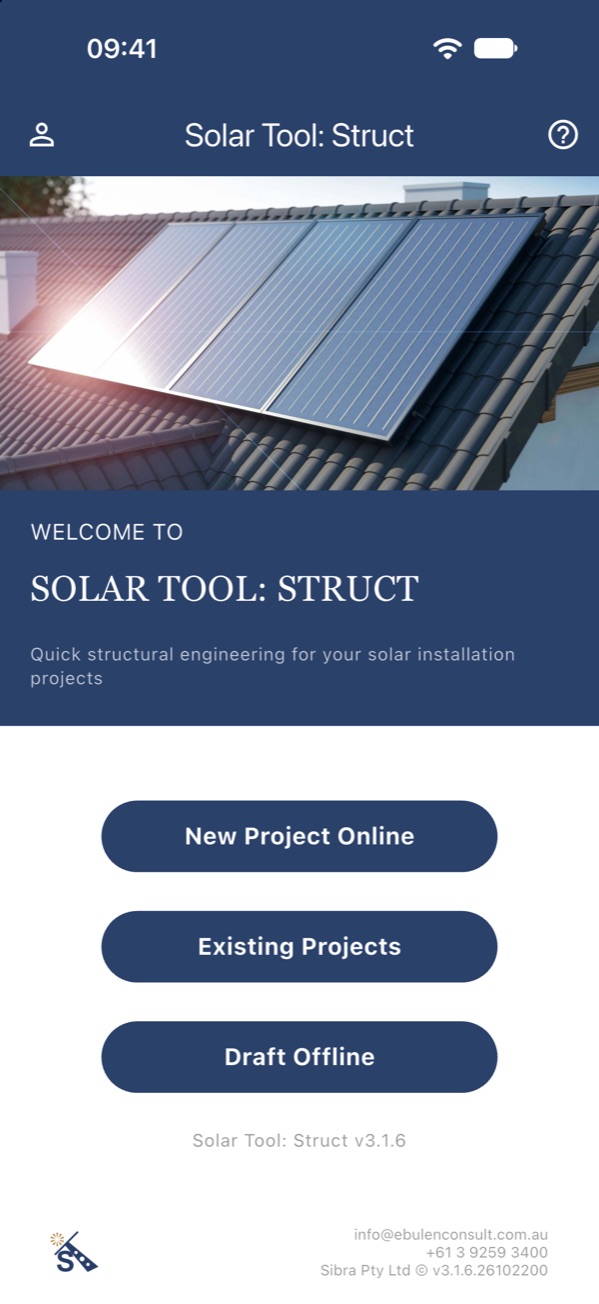
On the home screen, tap the version text at the bottom right 7 times quickly.
-
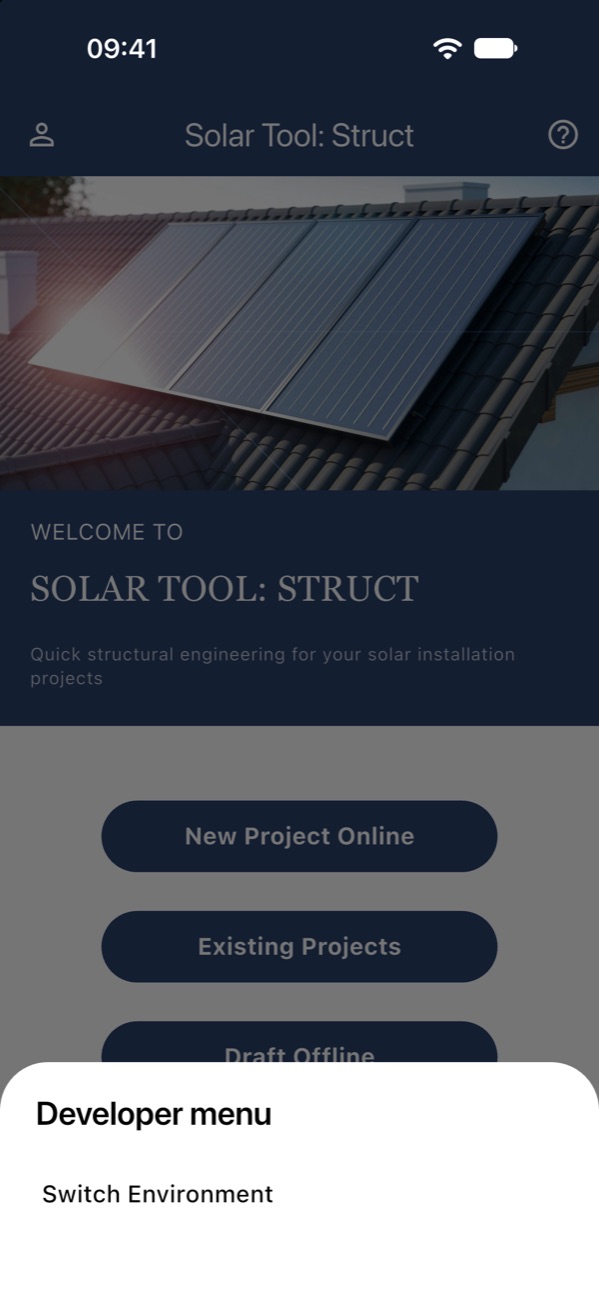
In Developer menu, tap Switch Environment.
-
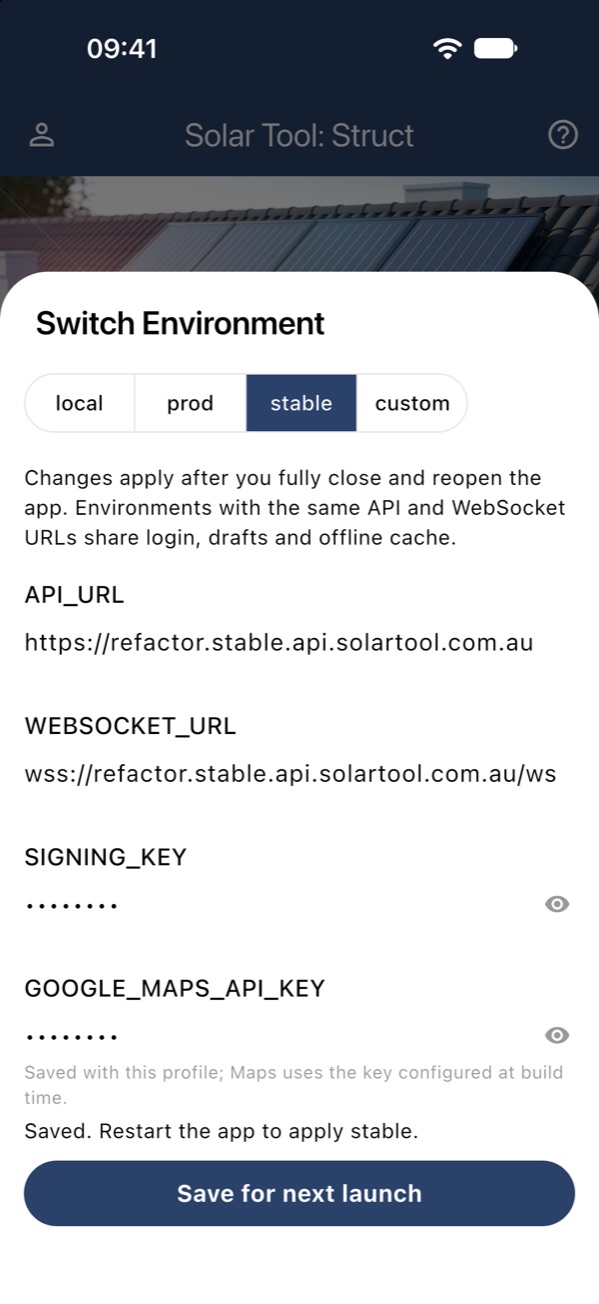
Choose stable, then tap Save for next launch.
-
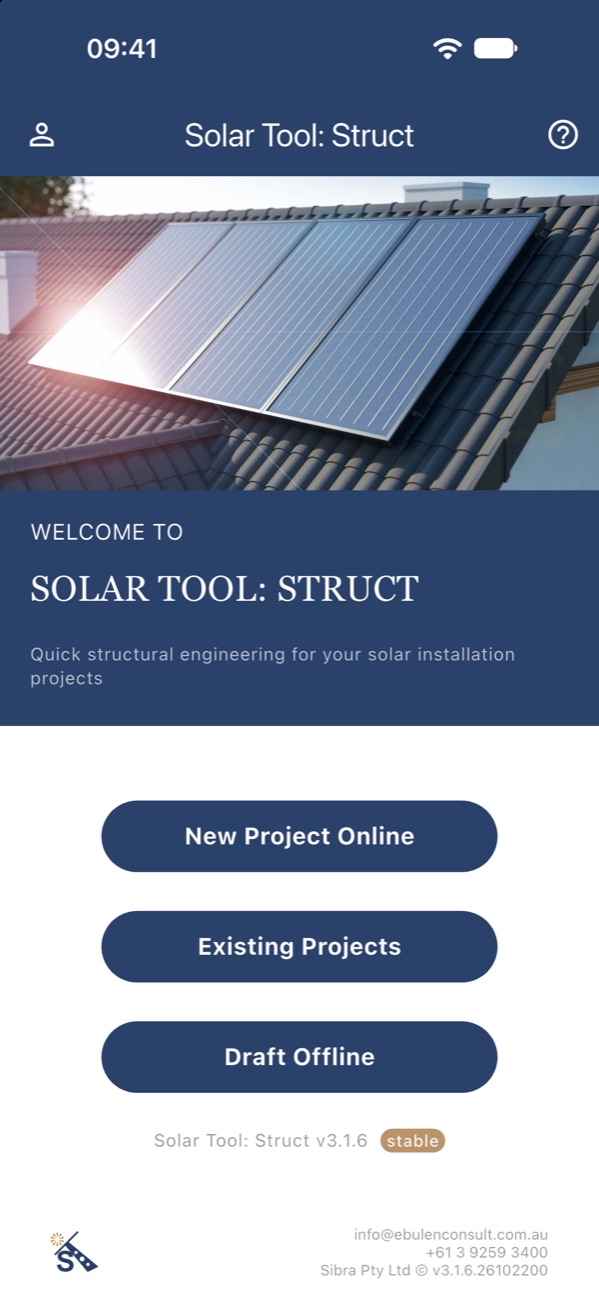
Close the app fully and reopen it. The home screen now shows a stable badge.
To go back to the live environment, repeat the steps and choose prod.